Jenkins로 구현하는 Kubernetes 기반 CI
Kubernetes에 Jenkins를 활용한 CI 구축 테스트
```
[k8s] Jenkins CI
```
이번 글을 통해 배워갈 내용
- Jenkins, ArgoCD, CI/CD 정의
- Jenkins 설치
개요
처음에는 Kubernetes 클러스터에 Jenkins와 ArgoCD를 사용해 CI/CD 파이프라인을 구축할 계획이었습니다.
Git의 main 브랜치에 변경이 감지되면, Rust Rocket 애플리케이션을 빌드하고, Kaniko를 이용해 도커 이미지를 생성한 뒤, 이를 프라이빗 도커 레지스트리에 푸시하고 GitOps 저장소를 업데이트하는 방식이었습니다.
그 후 ArgoCD가 이를 감지하여 블루-그린 방식으로 배포하는 구조를 구상했습니다.
하지만 실제로 테스트해 본 결과, 현재 사용 중인 Kubernetes 클러스터의 리소스가 매우 제한적이라는 문제를 발견했습니다.
그래서 이 구조는 간단한 예제로만 구현하고 삭제했습니다.
대신, CI 작업은 제 로컬 개발 환경의 Jenkins 또는 리소스 여유가 있는 다른 머신에서 수행하고, private image registry에 올린 다음 빌드된 이미지에 sign만 확인하는 방법으로 Kubernetes에 배포하는 방향으로 전환할 예정입니다.
1. Jenkins, ArgoCD, CI/CD 정의
CI/CD는 소프트웨어 개발에서 지속적 통합(Continuous Integration)과 지속적 배포(Continuous Delivery 또는 Continuous Deployment)를 의미하며, 코드 변경 사항을 자동으로 빌드, 테스트, 배포하여 개발과 운영의 효율성과 품질을 높이는 DevOps 핵심 프로세스입니다.
Jenkins는 개발자가 소프트웨어를 지속적으로 빌드, 테스트, 배포할 수 있도록 CI/CD 파이프라인의 다양한 단계를 자동화해주는 오픈 소스 자동화 서버입니다.
ArgoCD는 Kubernetes 환경에서 애플리케이션을 Git 저장소의 선언적 설정에 따라 자동으로 배포하고 동기화해주는 GitOps 기반의 지속적 배포(CD) 도구입니다.
2. Jenkins 설치
Helm 을 사용하셔도 되고 NFS로 설정하셔도 됩니다.
저는 Helm을 좋아하지 않고 NFS 도 느리다고 생각해서 yaml 그리고 local path에 설치합니다.
apparmor, seccomp, psa, trivy 이미지 보안등은 블로그글 특성상 넘어갑니다.
2-1 ns 설정
2-2 pv 설정
2-3 pvc 설정
2-4 jenkins deployment 설정
2-5 jenkins 실행확인
2-6 서비스 설정
2-7 접근설정
2-8 jenkins 키 값 확인
2-1 먼저 Jenkins namespace를 만들어줍니다
k create ns jenkins
2-2 k8s-node1 에 local path로 persistent volume 생성
필요시 directory 생성 및 권한 설정
sudo mkdir -p /mnt/data/jenkins
sudo chown -R 10001:10001 /mnt/data/jenkins
sudo chmod -R 755 /mnt/data/jenkins
kubectl apply -f - <<EOF
apiVersion: v1
kind: PersistentVolume
metadata:
  name: jenkins-pv
spec:
  capacity:
    storage: 10Gi
  accessModes:
    - ReadWriteOnce
  local:
    path: /mnt/data/jenkins
  nodeAffinity:
    required:
      nodeSelectorTerms:
      - matchExpressions:
        - key: kubernetes.io/hostname
          operator: In
          values:
          - k8s-node01
EOF
2-3 persistent volume claim 설정
kubectl apply -f - <<EOF
apiVersion: v1
kind: PersistentVolumeClaim
metadata:
  name: jenkins-pvc
  namespace: jenkins
spec:
  accessModes:
    - ReadWriteOnce
  resources:
    requests:
      storage: 10Gi
EOF
2-4 jenkins deployment 실행
kubectl apply -f - <<EOF
apiVersion: apps/v1
kind: Deployment
metadata:
  name: jenkins
  namespace: jenkins
spec:
  replicas: 1
  selector:
    matchLabels:
      app: jenkins
  template:
    metadata:
      labels:
        app: jenkins
    spec:
      securityContext:
        seccompProfile:
          type: RuntimeDefault
      containers:
        - name: jenkins
          image: jenkins/jenkins:lts-jdk17
          ports:
            - containerPort: 8080
            - containerPort: 50000
          volumeMounts:
            - name: jenkins-home
              mountPath: /var/jenkins_home
            - name: tmp
              mountPath: /tmp
          resources:
            limits:
              cpu: "500m"
              memory: "1024Mi"
            requests:
              cpu: "250m"
              memory: "512Mi"
          securityContext:
            allowPrivilegeEscalation: false
            runAsNonRoot: true
            runAsUser: 10001
            runAsGroup: 10001
            readOnlyRootFilesystem: true
            capabilities:
              drop:
                - ALL
      volumes:
        - name: jenkins-home
          persistentVolumeClaim:
            claimName: jenkins-pvc
        - name: tmp
          emptyDir: {}
EOF
2-5 실행확인
k -n jenkins get all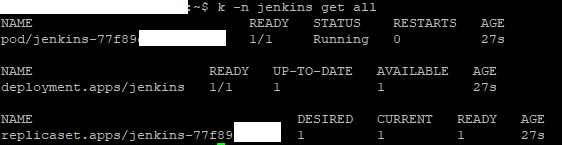
2-6 서비스 설정
jenkins clusterip service 생성
name: jenkins: 서비스의 DNS를 jenkins.jenkins.svc.cluster.local로 정의합니다.
selector: 해당 Deployment의 라벨(app: jenkins)과 일치시킵니다.
port: HTTP UI 포트(8080)와 에이전트 포트(50000)를 외부에 노출합니다.
type: ClusterIP: 기본 값으로, 클러스터 내부에서만 서비스를 노출합니다.
kubectl apply -f - <<EOF
apiVersion: v1
kind: Service
metadata:
  name: jenkins
  namespace: jenkins
spec:
  selector:
    app: jenkins
  ports:
    - name: http
      port: 8080
      targetPort: 8080
    - name: agent
      port: 50000
      targetPort: 50000
  type: ClusterIP
EOF
2-7 접근설정
public cloud 에 있는 k8s 라면 그곳에 법칙을 따라서 ingress 세팅하고 loadbalancer로 확인을 하셔도 되고
코드마스터김씨의 private 클라우드 법칙을 따라서 리눅스 터널링을 통해 두 서버를 경유해 원격 클러스터의 Jenkins 포트를 로컬로 포워딩해도 됩니다.
추가로 필요시 netpol 설정을 통해 보안처리합니다
# terminal1
ssh -J codemasterkimc@터널1주소 codemasterkimc@터널2주소 "kubectl port-forward -n jenkins pod/jenkins-77f89ccf8b-wh2dv 8080:8080"

# terminal2
ssh -N -L 포트:localhost:포트 -J codemasterkimc@터널1주소 codemasterkimc@터널2주소
2-8
jenkins 키 값 확인
k -n jenkins logs pod/jenkins-77f89ccf8b-wh2dv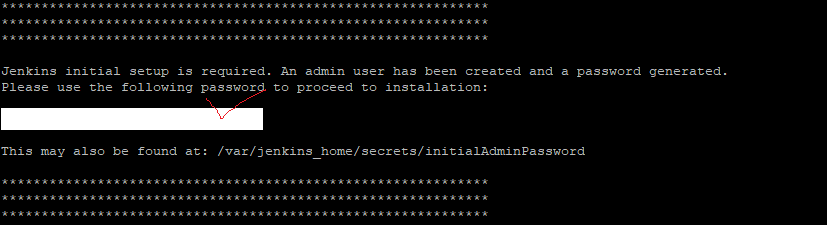
2-9
jenkins 접속
키값 입력후 continue 클릭

2-10
Jenkins 플러그인 설치
필요한 Plugin 선택 혹은 일단 설치 후 plugin manager를 통해 변경도 가능합니다
일단 저는
아래를 초기 설치 후
GitHub
Git
Pipeline
Credentials Binding
아래는 초기 설치 후 설치했습니다.
Docker Pipeline
https://plugins.jenkins.io/docker-workflow/
Docker Pipeline
Build and use Docker containers from pipelines.
plugins.jenkins.io
Kubernetes
https://plugins.jenkins.io/kubernetes/
Kubernetes
This plugin integrates Jenkins with <a href="https://github.com/GoogleCloudPlatform/kubernetes/" target="_blank" rel="noreferrer noopener nofollow">Kubernetes</a>
plugins.jenkins.io

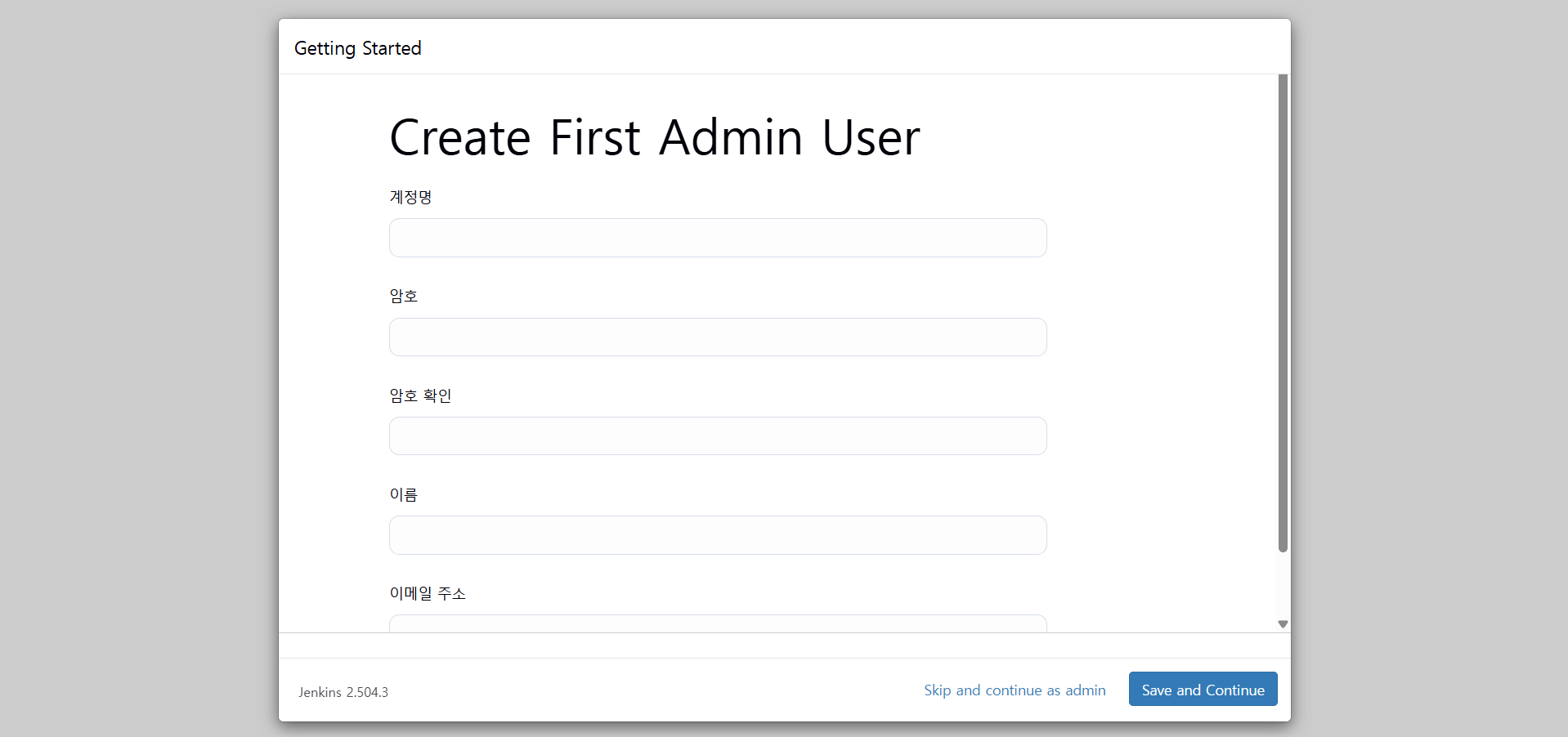
2-10
용도에 맞게 클러스터 내부에서 ArgoCD와 연결 예정이어서 아래와 같이 세팅했습니다.
http://jenkins.jenkins.svc.cluster.local:8080/
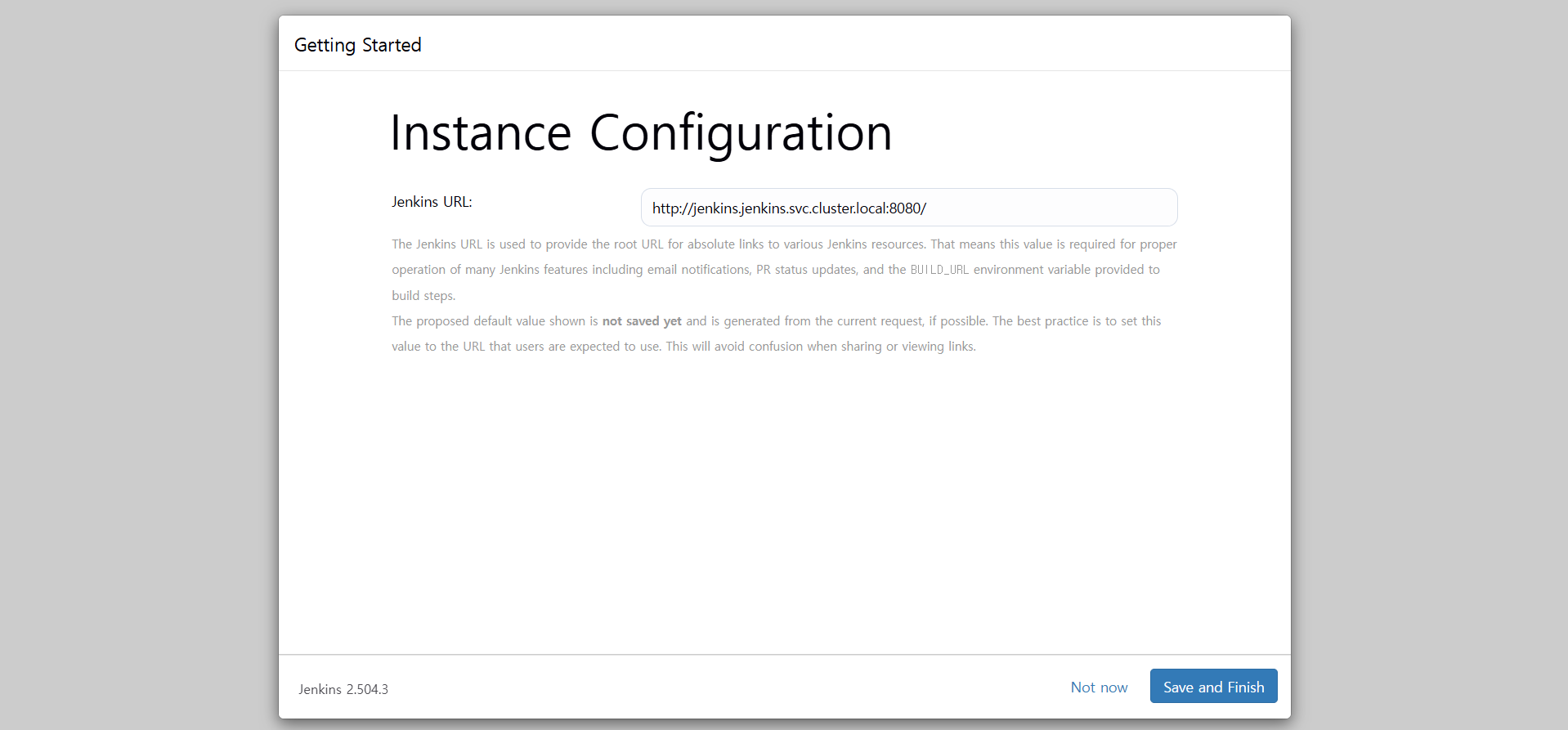
대략적인 설치 후
다크모드를 설정하고
---
새로운 Item -> item name 설정 -> Pipeline을 선택했습니다

---
Jenkins UI -> Manage Jenkins -> Manage Nodes and Clouds -> Configure Clouds
이름, Url, Namespace, Jenkins Url, Credential 등을 세팅하고
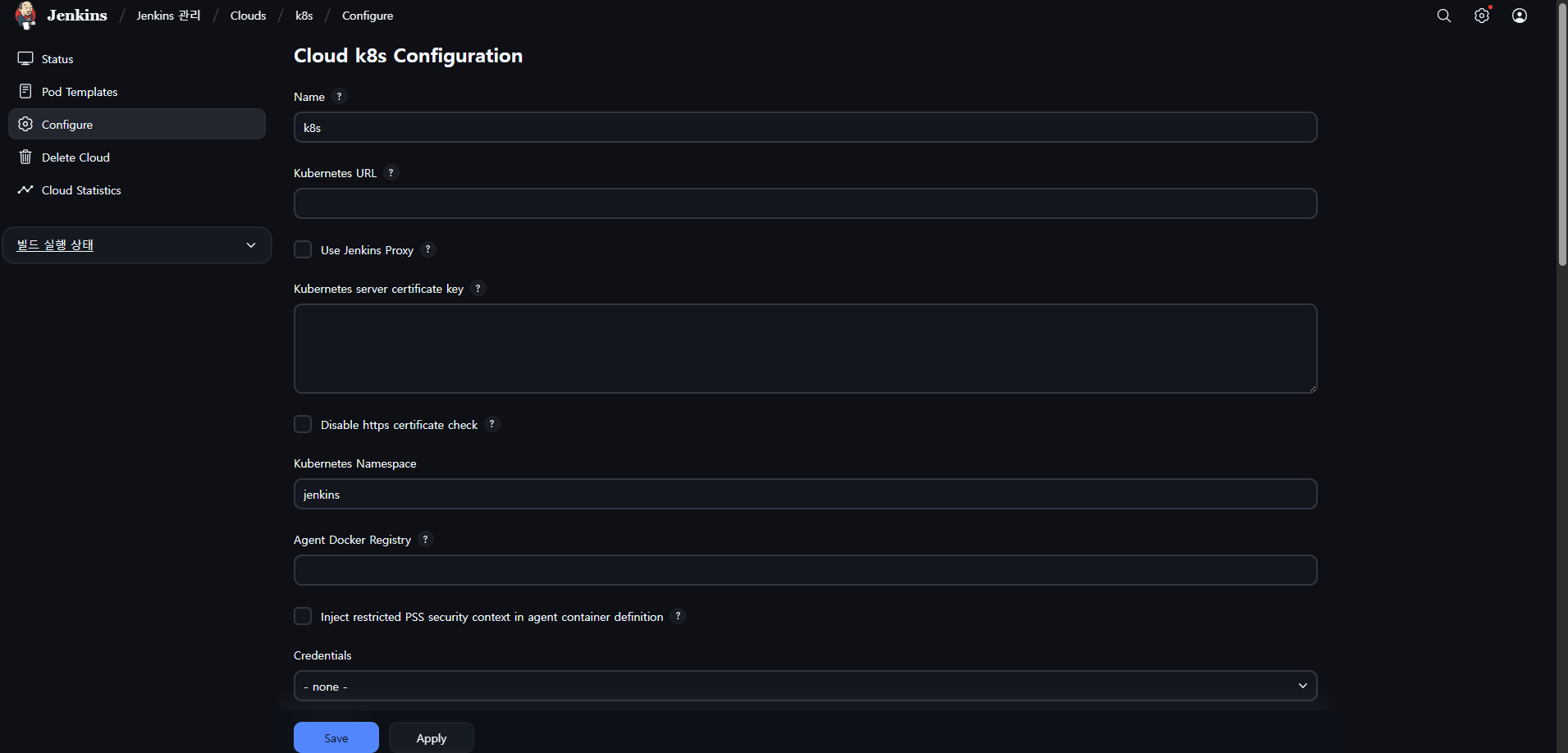
---
kaniko를 이용해 이미지를 빌드했으며
sanitize 된 pipeline을 첨부합니다
pipeline {
  agent {
    kubernetes {
      defaultContainer 'jnlp'
      yaml """
apiVersion: v1
kind: Pod
metadata:
  labels:
    some-label: kaniko-build
spec:
  restartPolicy: Never
  initContainers:
    - name: fix-permissions
      image: busybox
      command: ['sh', '-c', 'chmod -R 777 /kaniko/workspace']
      volumeMounts:
        - name: kaniko-workspace
          mountPath: /kaniko/workspace
  containers:
    - name: rust
      image: rustlang/rust:nightly-slim
      command:
        - sleep
      args:
        - infinity
      tty: true
      volumeMounts:
        - name: kaniko-workspace
          mountPath: /kaniko/workspace
        - name: cargo-cache
          mountPath: /cargo-home
    - name: kaniko
      image: gcr.io/kaniko-project/executor:debug
      command: ['sleep']
      args: ['infinity']
      tty: true
      volumeMounts:
        - name: kaniko-secret
          mountPath: /kaniko/.docker/
        - name: kaniko-workspace
          mountPath: /kaniko/workspace
  volumes:
    - name: kaniko-secret
      secret:
        secretName: jenkins-registry-sec
        items:
          - key: .dockerconfigjson
            path: config.json
    - name: kaniko-workspace
      emptyDir: {}
    - name: cargo-cache
      emptyDir: {}
"""
    }
  }

  stages {
    stage('Setup SSH') {
      steps {
        sh '''
          mkdir -p ~/.ssh
          echo "Host github.com\n  StrictHostKeyChecking no\n" >> ~/.ssh/config
        '''
      }
    }

    stage('Checkout') {
      steps {
        git branch: 'main', url: 'git@github.com:<your-org>/<your-repo>.git', credentialsId: 'git'
      }
    }

    stage('Build with Cargo') {
      steps {
        container('rust') {
          sh '''
          export CARGO_HOME=/cargo-home
          export CARGO_TARGET_DIR=/cargo-home/target

          apt-get update && apt-get install -y libpq-dev
          cargo build --release

          mkdir -p /kaniko/workspace/target/release
          cp /cargo-home/target/release/<your-binary> /kaniko/workspace/target/release/<your-binary>
          cp Dockerfile /kaniko/workspace/Dockerfile
          '''
        }
      }
    }

    stage('Build and Push with Kaniko') {
      steps {
        container('kaniko') {
          sh '''#!/busybox/sh
/kaniko/executor \
  --dockerfile=Dockerfile \
  --context=dir:///kaniko/workspace \
  --destination=<your-registry>/<your-image>:latest \
  --insecure \
  --skip-tls-verify
          '''
        }
      }
    }
  }
}
성공을 확인한 다음
고민을 했습니다.
k8s 내부에서 돌릴것인가?
아니면 머신을 하나 더 구해서 돌릴것인가?

리소스가 빵빵하다면 어디든 돌리면 되겠지만
리소스가 많이 없는 관계로 젠킨스를 삭제했습니다
읽어주셔서 감사합니다
무엇인가 얻어가셨기를 바라며
오늘도 즐거운 코딩 하시길 바랍니다 ~ :)
참조 및 인용
https://www.jenkins.io/doc/book/installing/kubernetes/
Kubernetes
Jenkins – an open source automation server which enables developers around the world to reliably build, test, and deploy their software
www.jenkins.io