리액트 훅을 사용해서 캔버스에 움직이는 하트 애니메이션 만들기
리액트 훅을 사용해서 캔버스에 움직이는 하트 애니메이션 만들기
Make heart animation inside canvas using react hook

이번 글을 통해 배워갈 내용
- Canvas Animation

1.
리액트 컴포넌트를 만들고
캔버스를 더해줍니다.
import React from 'react';

const Heart = () => {
    return (
        <canvas
            style={{ width: '400px', height: '400px' }}
        />
    );
};

export default Heart;
2.
리액트 컴포넌트와 Dom 이 상호작용을 하기 위해서
ref를 추가해줍니다.
import React from 'react';
import { useRef } from "react";

const Heart = () => {
	let ref = useRef();
    return (
        <canvas
        	ref={ref}
            style={{ width: '400px', height: '400px' }}
        />
    );
};

export default Heart;
3.
useEffect hook을 사용해 효과 처리를 해줍니다.
하트는 위아래로 꼭짓점을 움직여서
숨 쉬는 것처럼 보이게 하였습니다.
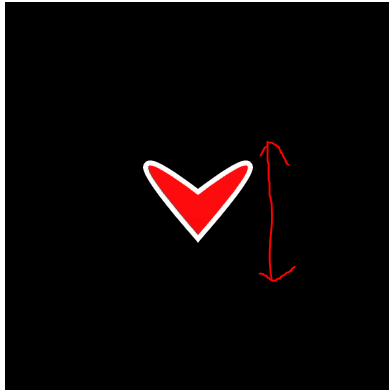
      context.strokeStyle = "#fff";
      context.strokeWeight = canvas.width / 100;
      context.shadowOffsetX = canvas.width / 100;
      context.shadowOffsetY = canvas.height / 100;
      context.lineWidth = canvas.width / 40;
      context.fillStyle = "rgba(254, 12, 13, 1)";
4.
pixel ratio라는 임의의 메서드를 만들어서 비율을 일정하게 만들어줍니다.
5.
requestAnimationFrame
cancelAnimationFrame
을 활용해서 애니메이션 프레임 변화를 줍니다.
전체 코드는 아래와 같습니다.
import logo from './logo.svg';
import './App.css';
import Heart from './component/Heart';

function App() {
  return (
    <div className="App">
      <header className="App-header">
        <Heart />
      </header>
    </div>
  );
}

export default App;

// ref
// https://codemasterkimc.tistory.com
import React, { useEffect } from "react";
import { useRef } from "react";
const getPixelRatio = (context) => {
var backingStore =
context.backingStorePixelRatio ||
context.webkitBackingStorePixelRatio ||
context.mozBackingStorePixelRatio ||
context.msBackingStorePixelRatio ||
context.oBackingStorePixelRatio ||
context.backingStorePixelRatio ||
1;
return (window.devicePixelRatio || 1) / backingStore;
};
const Heart = () => {
let ref = useRef();
useEffect(() => {
let canvas = ref.current;
let context = canvas.getContext("2d");
let ratio = getPixelRatio(context);
let width = getComputedStyle(canvas).getPropertyValue("width").slice(0, -2);
let height = getComputedStyle(canvas)
.getPropertyValue("height")
.slice(0, -2);
canvas.width = width * ratio;
canvas.height = height * ratio;
canvas.style.width = `${width}px`;
canvas.style.height = `${height}px`;
let requestId;
let i = 0;
const render = () => {
context.clearRect(0, 0, canvas.width, canvas.height);
context.beginPath();
//context.arc(canvas.width / 4 + 2,canvas.height / 4, (canvas.width / 4) * Math.abs(Math.cos(i)),0,2*Math.PI);
const w = canvas.width / 2;
const h = canvas.height / 2;
const d = Math.min(w, h);
const k = Math.sin(i) * 10;
context.strokeStyle = "#fff";
context.strokeWeight = canvas.width / 100;
context.shadowOffsetX = canvas.width / 100;
context.shadowOffsetY = canvas.height / 100;
context.lineWidth = canvas.width / 40;
context.fillStyle = "rgba(254, 12, 13, 1)";
console.log(k);
context.moveTo(d,d);
context.quadraticCurveTo(24*d/16, 10*d/16, d, (5*d/4 + k));
context.quadraticCurveTo(8*d/16, 10*d/16, d, d);
context.stroke();
context.fill();
i += 0.05;
requestId = requestAnimationFrame(render);
console.log(requestId);
};
render();
return () => {
cancelAnimationFrame(requestId);
};
});
return (
<canvas
ref={ref}
style={{ width: "400px", height: "400px", background: "black" }}
/>
);
};
export default Heart;
// ref
// https://codemasterkimc.tistory.com
캔버스에 style값만 바꿔서 크기 조절이 가능하게끔
비율로 작성하였습니다.
참조 및 인용
https://developer.mozilla.org/en-US/docs/Web/API/CanvasRenderingContext2D/moveTo
CanvasRenderingContext2D.moveTo() - Web APIs | MDN
The CanvasRenderingContext2D.moveTo() method of the Canvas 2D API begins a new sub-path at the point specified by the given (x, y) coordinates.
developer.mozilla.org
https://developer.mozilla.org/en-US/docs/Web/API/CanvasRenderingContext2D/quadraticCurveTo
CanvasRenderingContext2D.quadraticCurveTo() - Web APIs | MDN
The CanvasRenderingContext2D.quadraticCurveTo() method of the Canvas 2D API adds a quadratic Bézier curve to the current sub-path. It requires two points: the first one is a control point and the second one is the end point. The starting point is the late
developer.mozilla.org