```
윈도우에 PostgreSql 설치하기
```

이번 글을 통해 배워갈 내용
- PostgreSQL Window에 설치하는 방법
1.
PostgreSQL 다운로드
https://www.postgresql.org/download/windows/
PostgreSQL: Windows installers
Windows installers Interactive installer by EDB Download the installer certified by EDB for all supported PostgreSQL versions. Note! This installer is hosted by EDB and not on the PostgreSQL community servers. If you have issues with the website it's hoste
www.postgresql.org
2.
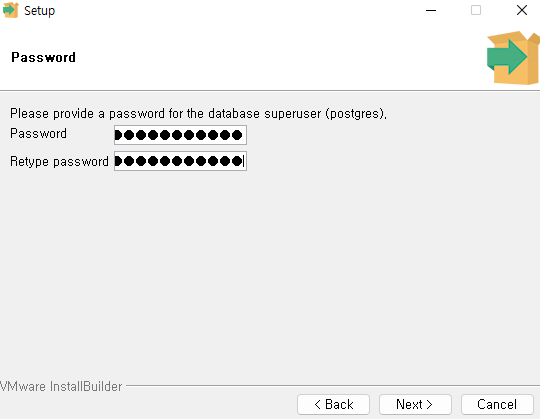
파일 설치 후 비밀번호 설정
비밀번호는 꼭 저장해두시기 바랍니다
(이따가 타이핑해야 함)
3.
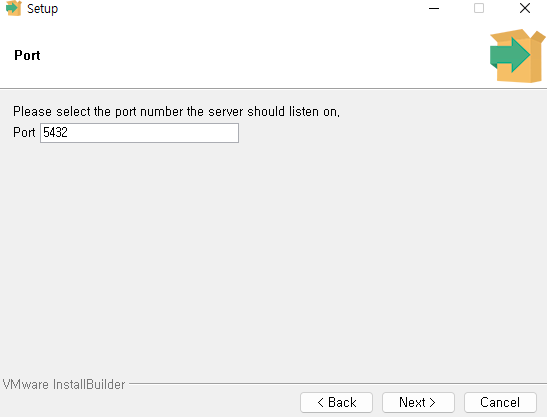
포트 설정
4.
언어 로케일 설정

5.
확인 후 Next를 누르다 보면
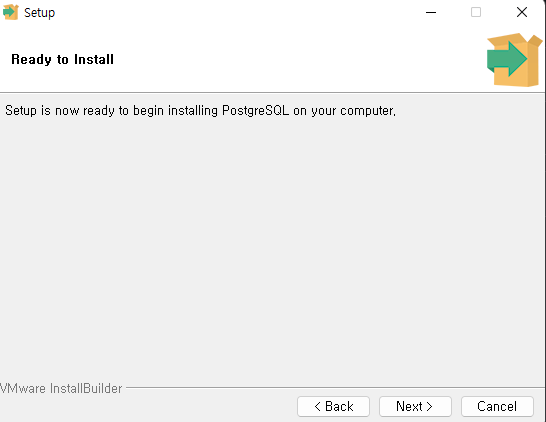
6. 설치가 시작하고

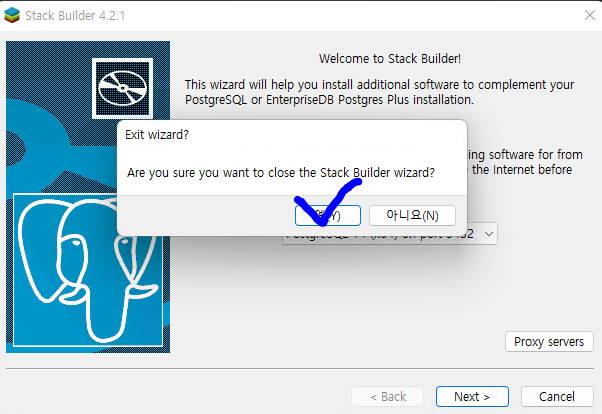
GUI를 제공하는 Stack Builder는 설치하지 않았습니다
왜냐하면 CMD가 더 편하기 때문입니다
설치 완료 후
SQL Shell 실행
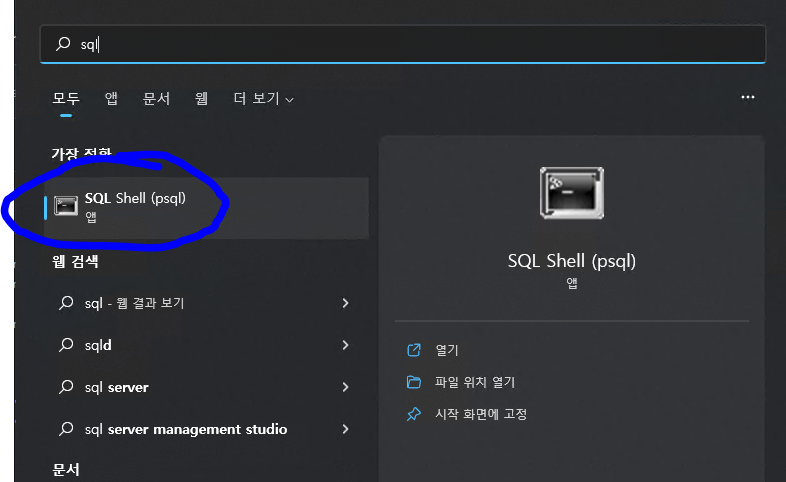
각 행에 대해서
엔터를 치면 넘어가고
비밀번호는 입력 시 타이핑한 게 안보입니다
select version()
으로 버전 확인

설치 완료했습니다.
읽어주셔서 감사합니다
무엇인가 얻어가셨기를 바라며
오늘도 즐거운 코딩 하시길 바랍니다 ~ :)
참조 및 인용
https://www.postgresqltutorial.com/postgresql-getting-started/install-postgresql/
Install PostgreSQL
Summary: in this tutorial, you will step by step learn how to install PostgreSQL on your local system. PostgreSQL was developed for UNIX-like platforms, however, it was designed to be portable. It means that PostgreSQL can also run on other platforms such
www.postgresqltutorial.com
'DB' 카테고리의 다른 글
| PostgreSQL에서 값이 존재하는지 확인하는 한가지 방법 / Exists (0) | 2023.01.07 |
|---|---|
| String으로 PK 만들때 Performance 높이는 한가지 방법 (1) | 2022.11.23 |
| 생각) SQL 서버에서 공백문자열을 쓰는게 NULL을 쓰는것 보다 좋은 한가지 이유 (0) | 2022.10.31 |
| PostgreSql pgAdmin 서버로 연결해보기 (0) | 2022.09.21 |
| PostgreSql 비밀번호 분실시 초기화 하는 방법(윈도우) (0) | 2022.09.21 |